Shipping rules for Shopify checkout
Giraffe
Shipping
Build the options your customers pick from, and prove each one prices correctly before it charges anybody.
No Shopify store yet? Start one on Shopify · affiliate link
- One line at checkout, however many prices. Standard is one option your customer picks; free over $80 and a heavy surcharge are prices under it, not three competing choices.
- See the rate before you save it. The checkout preview shows the line as your customer will read it, priced by the same code that answers Shopify at checkout.
- Test at a real checkout first. Any rate can be held to test checkouts only, while your live rates keep serving customers.
How it works
From install to checkout
- 01
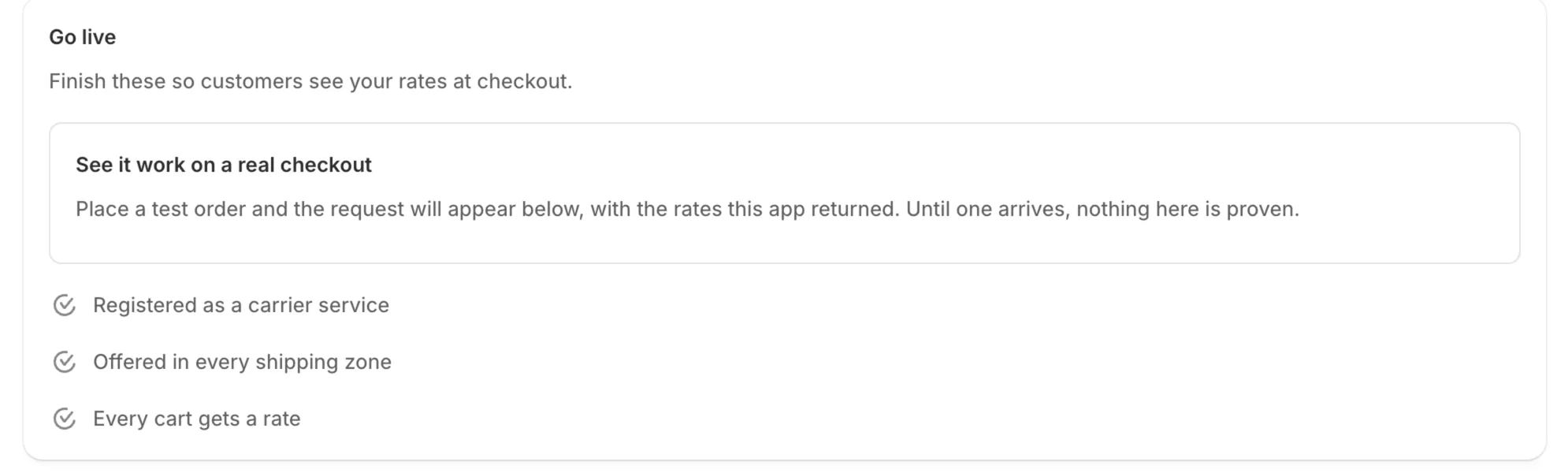
Install and follow the Go live list
The app registers itself with Shopify when you install it. The Go live list shows anything still outstanding — adding the app to your shipping zones, making sure every cart gets a rate, seeing a real rate request arrive — and disappears once nothing is.
- 02
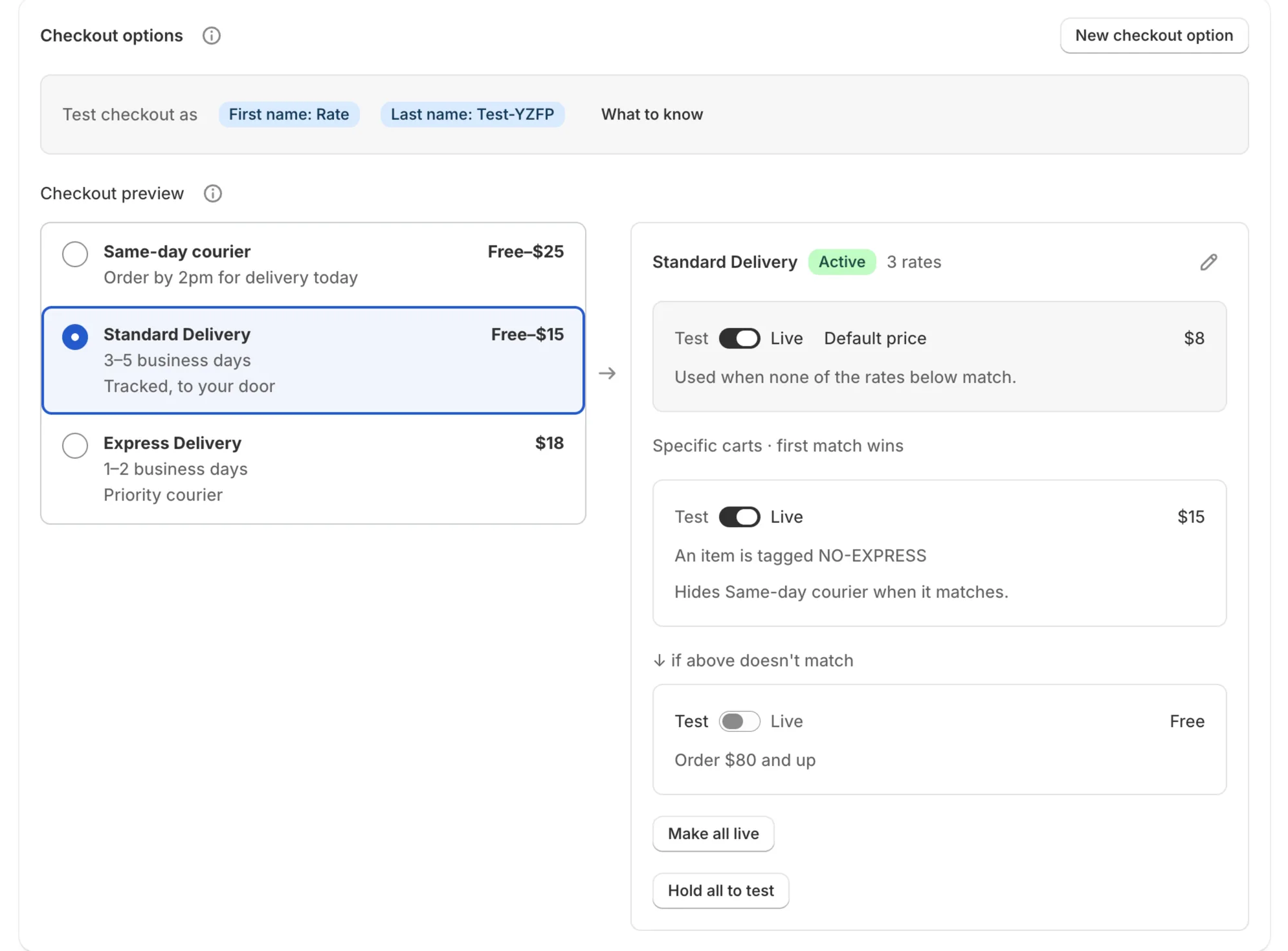
See your checkout at a glance
The home page lists each checkout option the way your customer sees it, with the range of prices it can charge. Click a line to see its default price and the specific rates under it, and switch them between Test and Live.
- 03
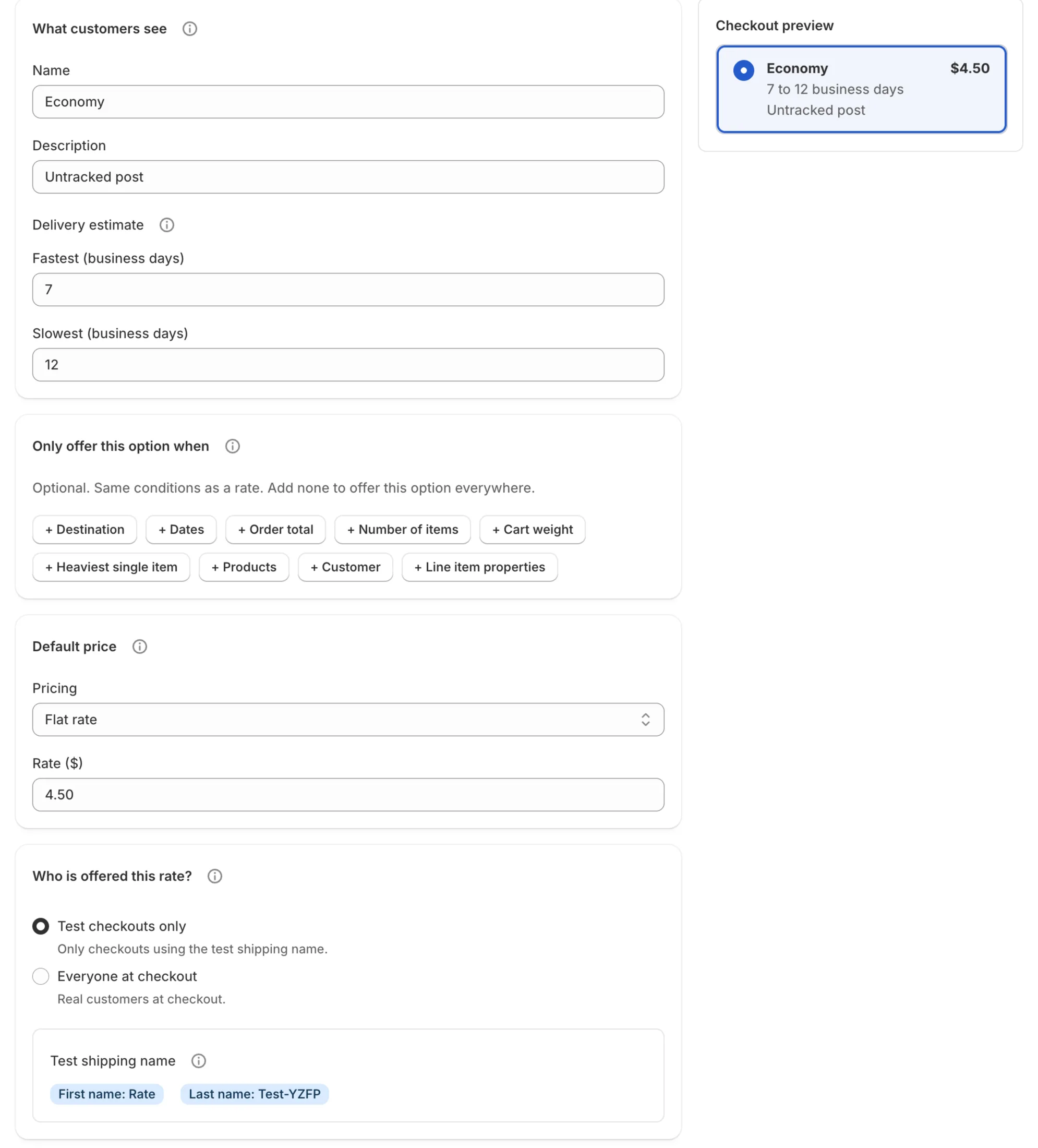
Create a checkout option
Give it the name, description and delivery estimate your customer reads, and a default price — flat or free. The preview beside the form updates as you type. Choose whether real customers see it yet, or only your own test checkouts.
- 04
Manage the option in one place
Each option has its own page: what customers see, an Active or Draft switch for the whole line, and its rates. The default price covers every cart; specific rates override it and are tried top to bottom, first match wins. Reorder, duplicate or remove any of them.
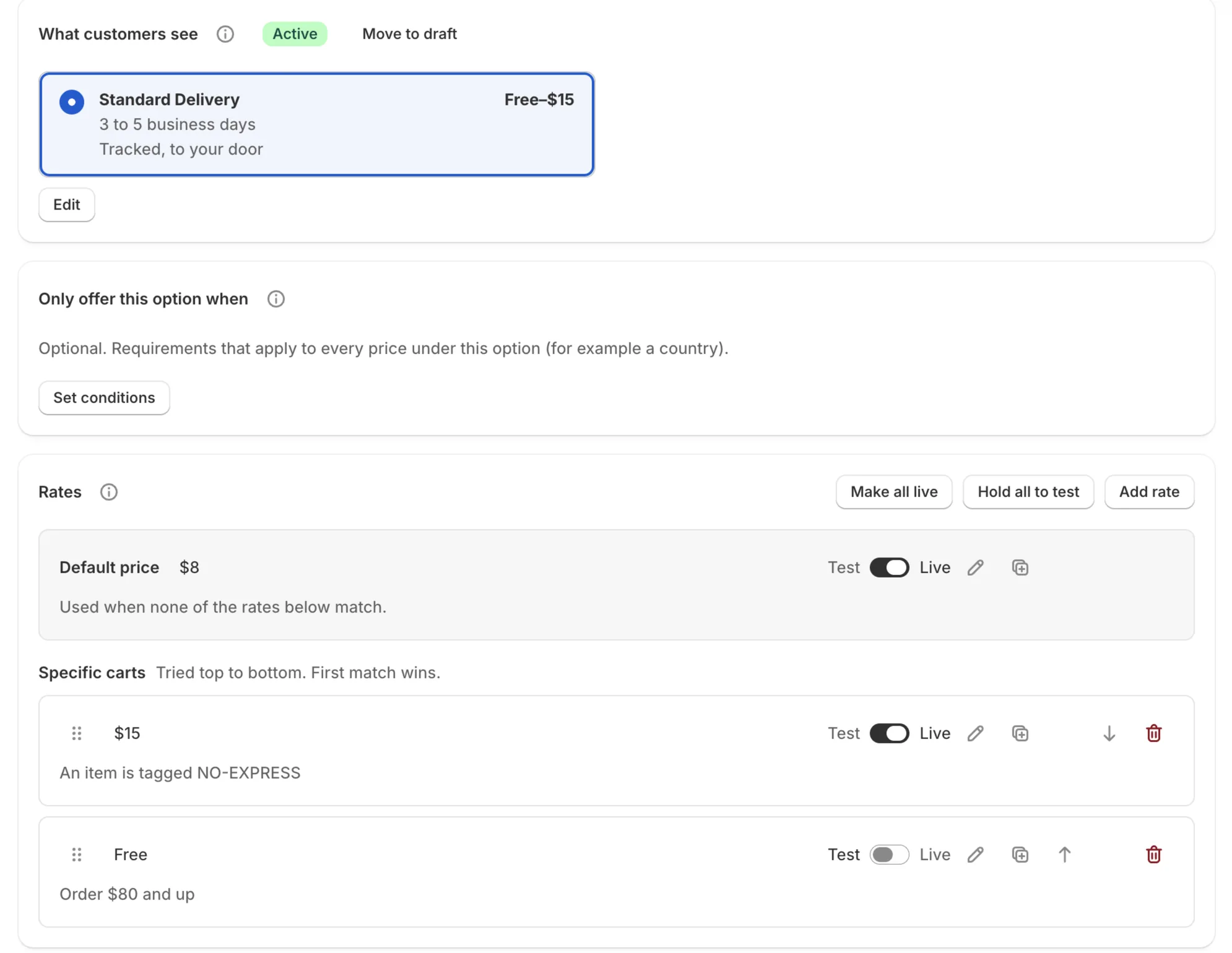
- 05
Add a rate for specific carts
Free over $80, a surcharge for bulky items, a cheaper price for one region. Conditions cover destination (countries, regions, postcodes), dates, order total, number of items, cart weight, the heaviest item, products, customer tags and line item properties. Price it flat, free, per item, per unit of weight, or in weight tiers — and read it back in plain English before you save.
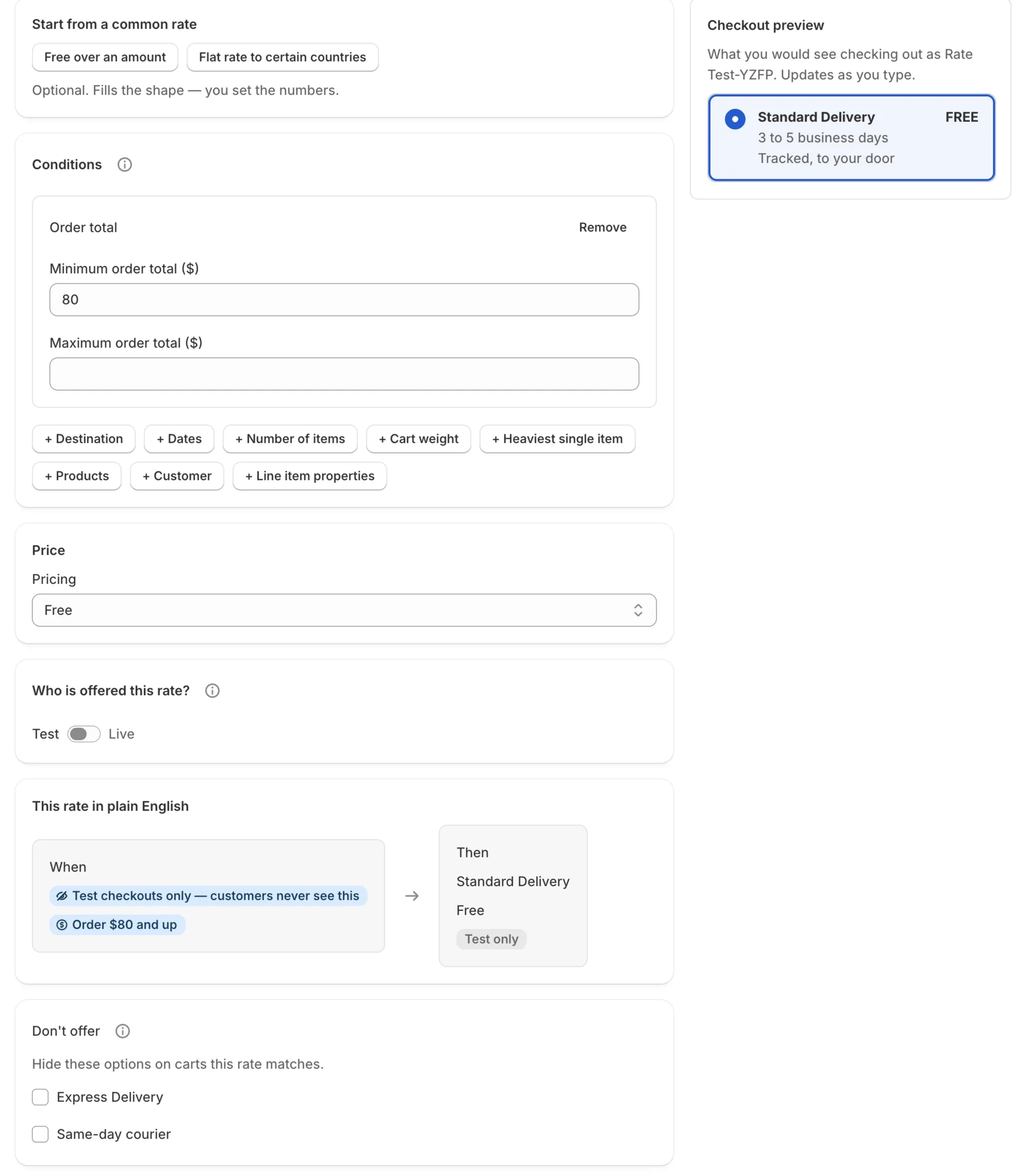
- 06
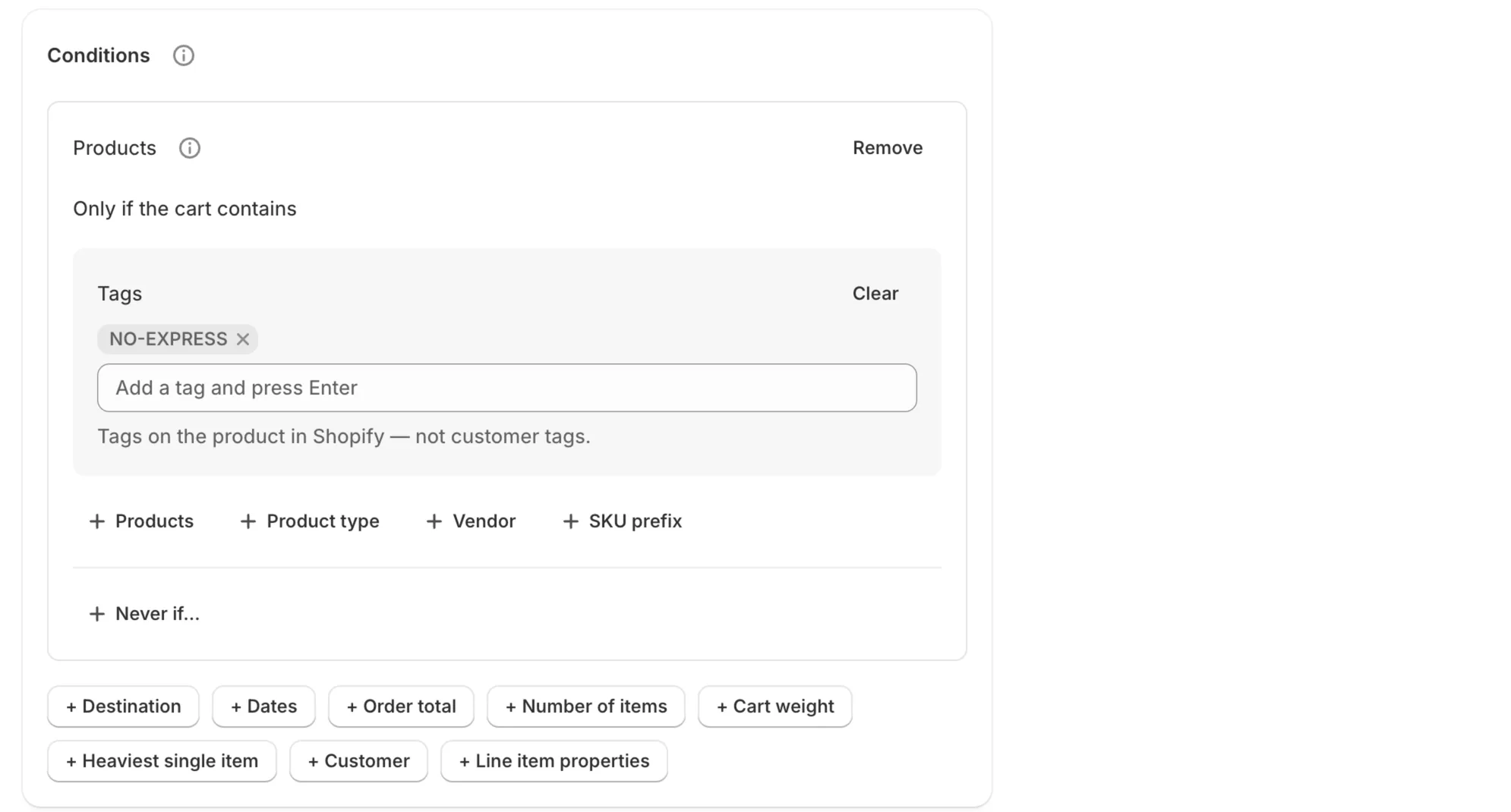
Match on what's in the cart
Only if, or never if, the cart contains particular products, product tags, product types, vendors or SKU prefixes. Tags and types come from the app's own copy of your catalogue, kept up to date as you edit products.
- 07
Hide one option when another applies
A rate can withhold other options on the carts it matches — no same-day courier when a bulky item is in the cart, no paid Standard when Free Shipping applies. The hidden option is badged with the option that hides it, so a missing line is never a mystery.

- 08
Limit where an option appears
Only offer this option when sets a requirement for the whole line — Same-day courier only to the US, say — so every rate under it inherits it instead of repeating it. The app warns you if you pick a country your store doesn't sell to.
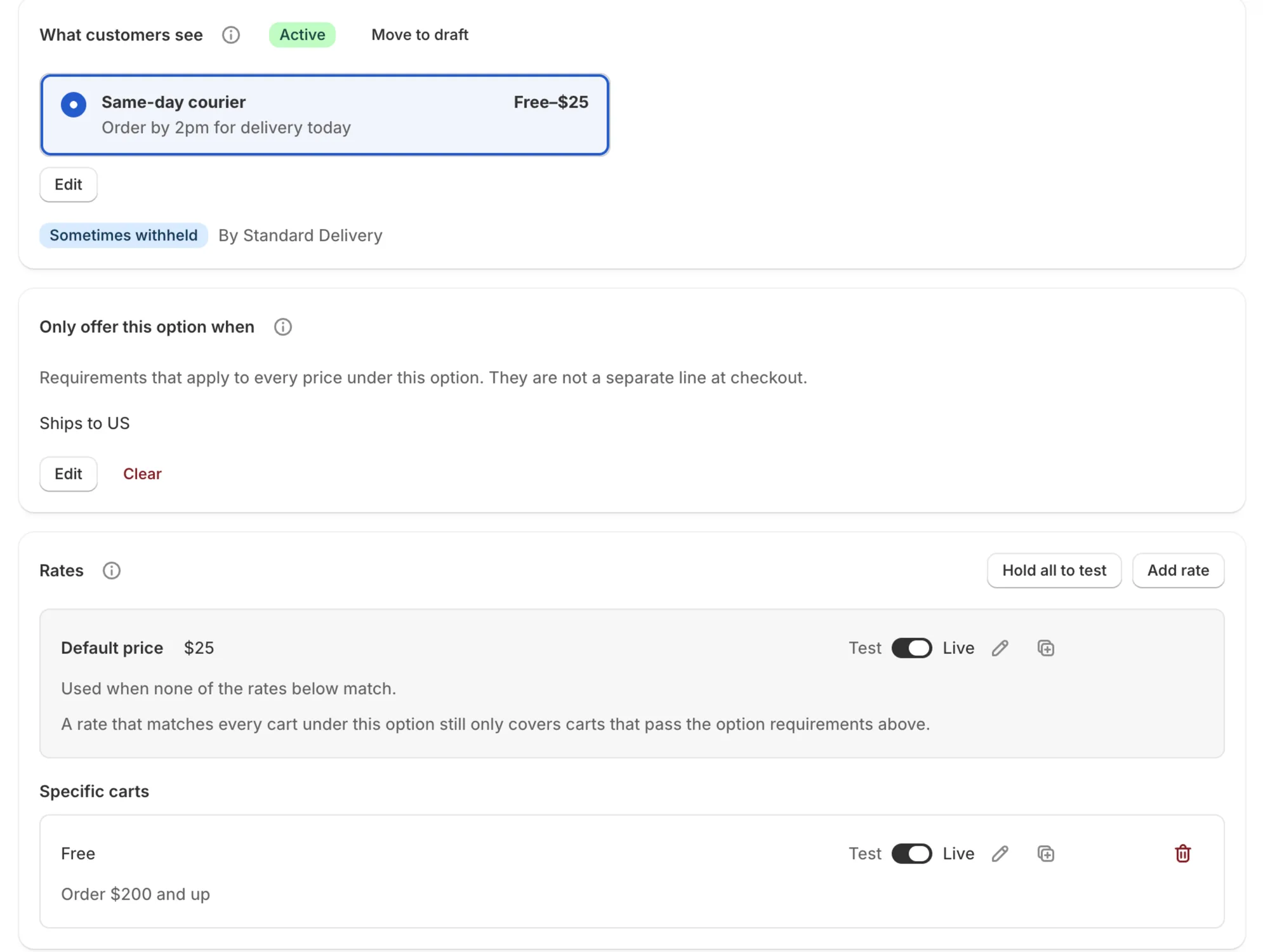
- 09
Test at a real checkout, then go live
A rate held to test checkouts is priced only when you check out under your shop's test name, which the app shows you — your live rates keep serving customers the whole time. When it prices the way you meant, switch it to Live. Building and testing are free; offering rates to real customers needs the subscription.
- 10
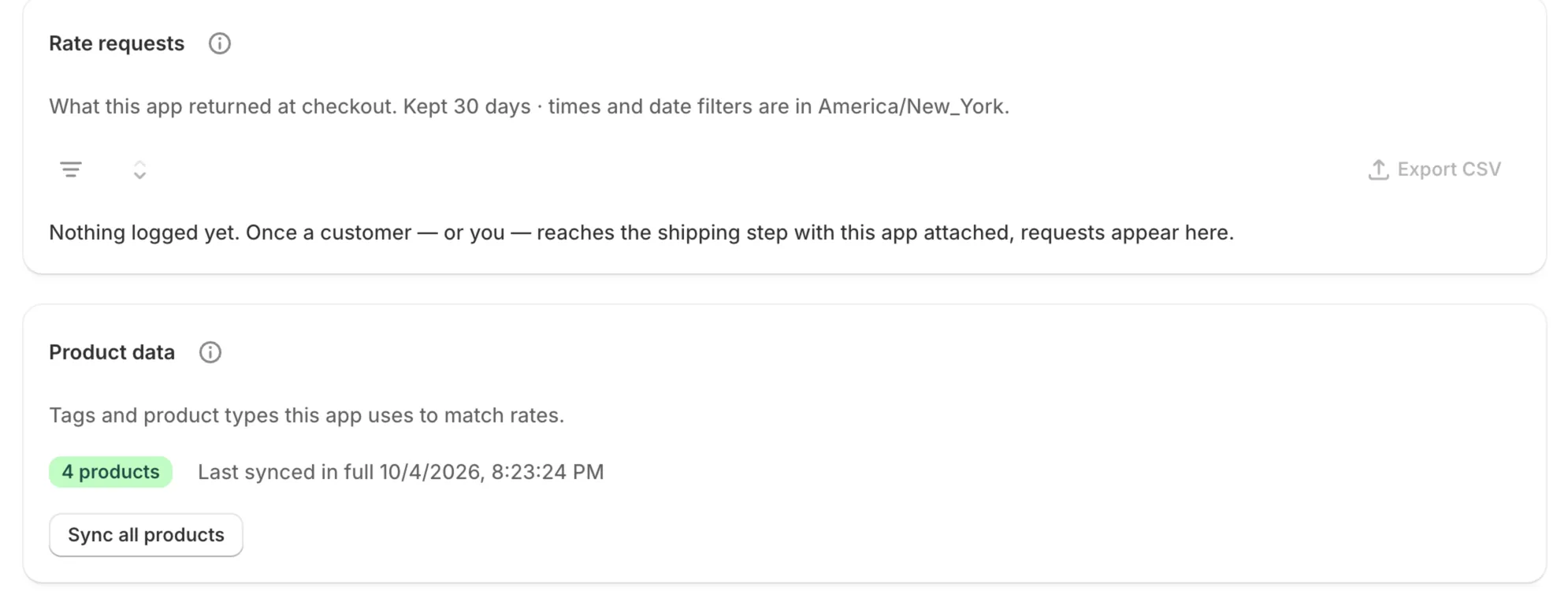
Check what checkout was quoted
Rate diagnostics records every time Shopify asks the app for rates: the destination, the cart total and what was returned, with filters and a CSV export. It also shows when your products were last synced, with a button to read them all again.